Your Account
Security, Backups and Your Data
Two-step login, sign-in history, nightly backups, downloading all your data and closing the account.
Last updated 28 Nov 2026
My Security (every user)
- Two-step login: after your password, VunaBook asks for a 6-digit code from an authenticator app on your phone (Google Authenticator, Microsoft Authenticator ...). Scan the QR code, type the code, and keep the recovery codes somewhere safe.
- My sign-ins, and sign out other devices.
- My phones with the VunaBook apps: the phones where you use the VunaBook app or the VunaBook POS app, and how each one is unlocked (PIN, biometrics or password). A lost or stolen phone: press Sign out next to it.
The mobile apps (VunaBook and VunaBook POS)
- The first time on a phone you sign in with your email and password (and the two-step code, if you use it). Then you can set a PIN or switch on fingerprint / face to open the app quickly; the password always works too.
- You can use one phone per app: signing in on a new phone signs the old one out of that app, and you get a notification.
- The apps can do only what your user groups allow, at your locations, with the features your company has on, exactly as on the website.
- The VunaBook app covers the daily work: dashboard, sales and the till, products (with their pictures, colours and sizes), customers and what they owe (statements, payments), suppliers and purchases, expenses, money accounts and the cash-up, stock transfers, stock counts with the phone's barcode scanner, returns, approvals, documents, every report, and the activity log. The VunaBook POS app is the till only.
- 5 wrong PINs remove the PIN: sign in with your password again. Changing your password signs every phone out. A user who is switched off or removed is signed out at once.
- The sign-ins and unlocks of the apps show in the sign-in lists, with the phone's name.
- Business or Till on one app. In the VunaBook app, someone who may use the POS and also other pages chooses after signing in how the phone is used: Business (dashboard, sales, documents, stock, customers, reports) or Till (POS) (sell at the counter, hold orders and tables, receipts). The phone remembers it; switch any time with Open the till (POS) under More, or Switch to Business in the till's Settings. A cashier who may only use the POS goes straight to the till.
Security & Data (the company)
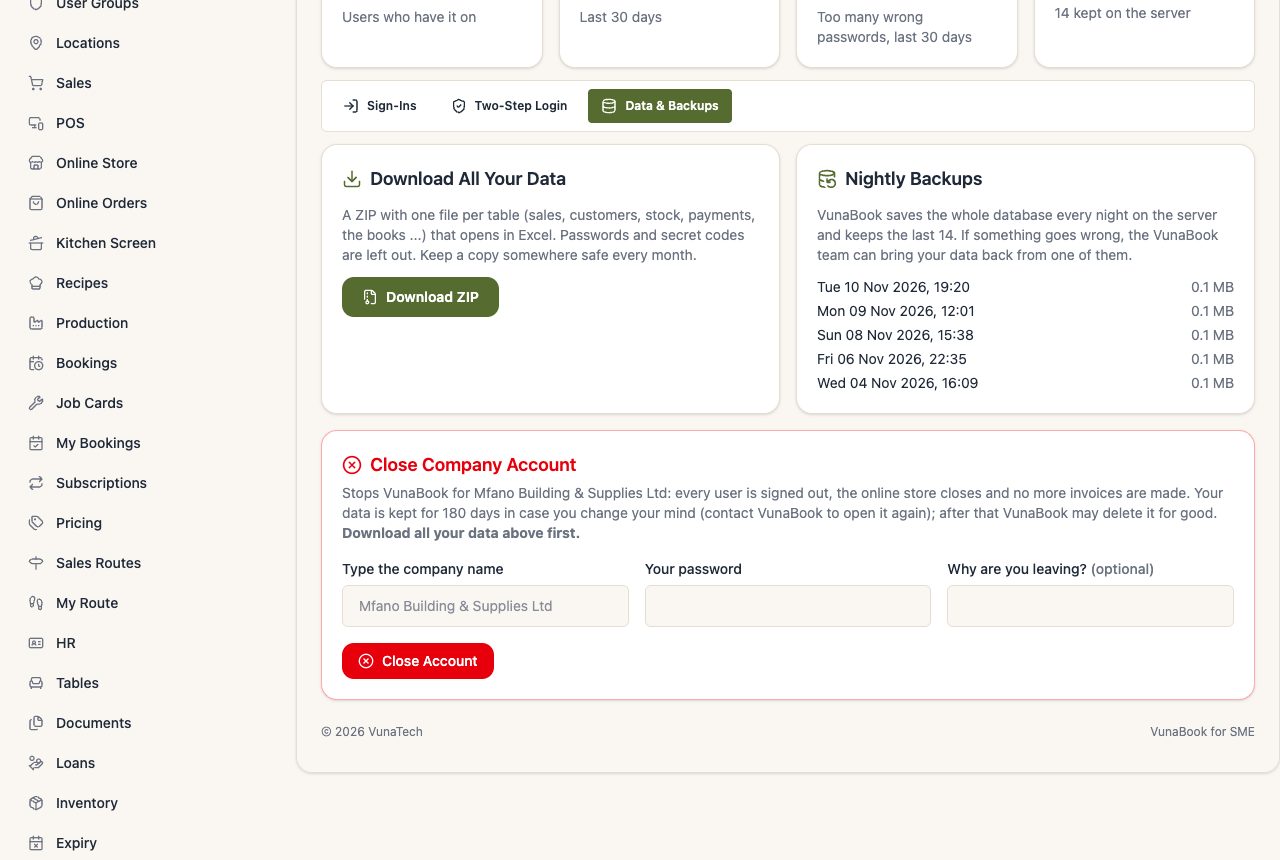
- Sign-Ins: the sign-ins of all users, failed ones included. After several wrong passwords an account is blocked for a while and you get a security alert.
- Two-Step Login: who must use it (nobody, the owners, the managers, or everyone), and Phones With the VunaBook Apps: every phone signed in to the apps, whose it is, and a Sign out button for each.
- Data & Backups:
- Download All Your Data: a ZIP with one Excel-friendly file per table (sales, customers, stock, payments, the books ...). Keep a copy every month.
- Nightly backups: VunaBook saves the whole database every night.
- Close Company Account (the owner only): see below.
Closing your account
The owner types the company name and their password, and can say why. Every user is signed out, the online store closes and no more invoices are made. Your data is kept for 30 days in case you change your mind (contact VunaBook to open it again); after that it may be deleted for good. Download all your data first.